
Managing groups
Creating and Managing Certificate Groups
Certificate groups are used to organise certificates and control who can view or manage them.
Groups can be used for certificate categories, vessel areas, departments, inspection types or any other structure that makes the certificate overview easier to use.
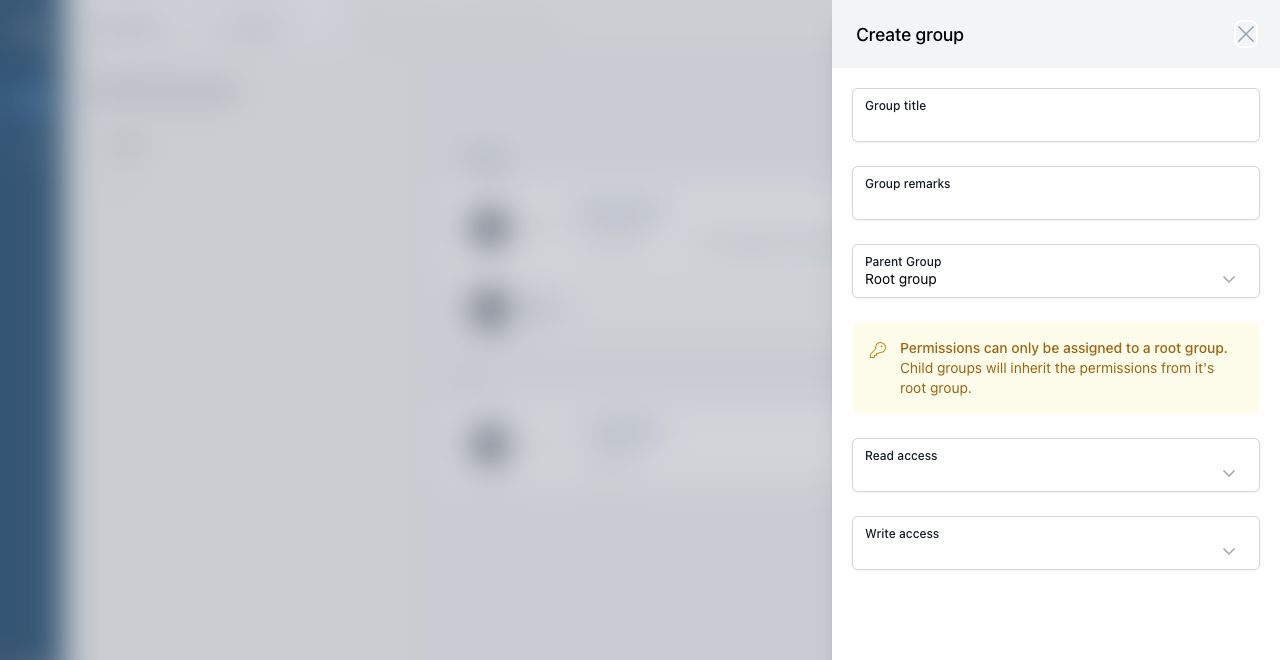
Required Permissions
To use certificate groups, your account needs the correct permissions.
| Permission | Allows |
|---|---|
| Access Certificates Module | Open and view the Certificates module. |
| Manage certificate groups | Create, edit and delete certificate groups. |
| Manage all certificates | Manage certificates across all groups. |
| Group read access | View certificates inside a specific group. |
| Group write access | Create and manage certificates inside a specific group. |
If you cannot see group create, edit or delete options, you probably do not have the required permission.
Separate Permissions per Group
Each root group can have its own permissions.
This means different roles can have access to different certificate groups. For example, the Captain may have access to all groups, while the Medical Officer only has access to medical certificates.
| Group | Read access | Write access |
|---|---|---|
| Safety certificates | Captain, Office | Captain |
| Class certificates | Captain, Technical office | Technical office |
| Medical certificates | Captain, Medical officer | Medical officer |
Child groups inherit permissions from their root group.
Create a Group
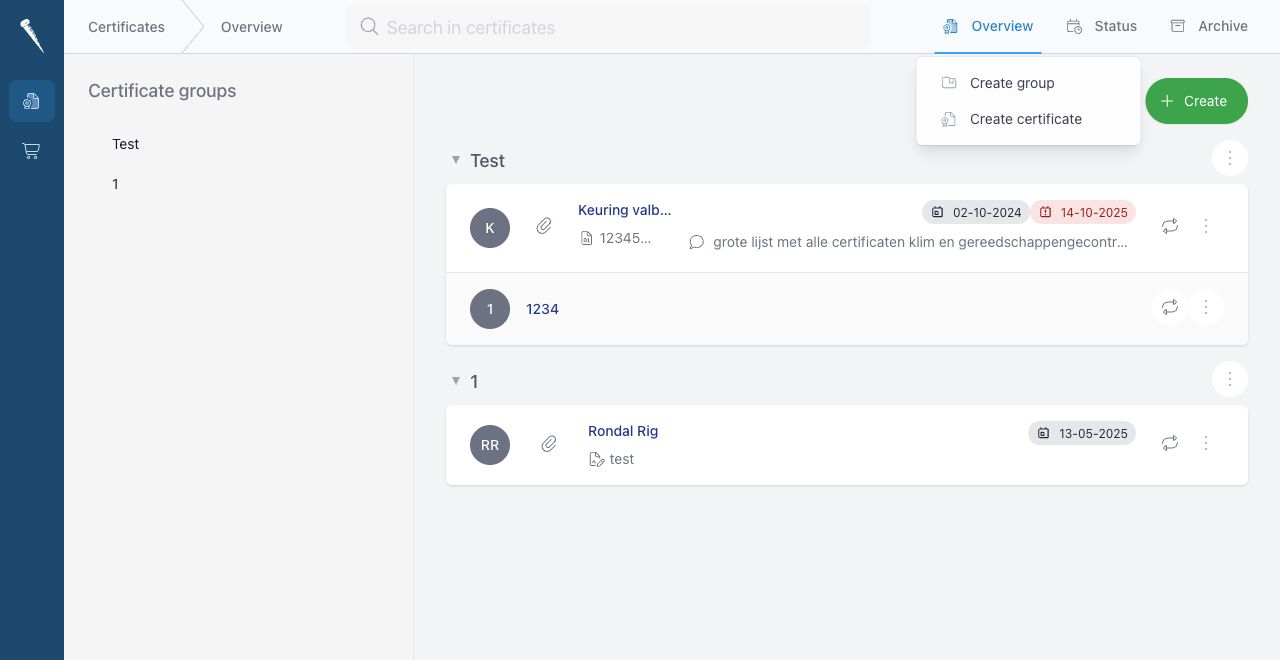
Go to Certificates > Overview.
Select Create > Create group.
Complete the group form.
| Field | Description |
|---|---|
| Group title | The name of the group. |
| Group remarks | Optional notes about the group. |
| Parent Group | Choose where the group should be placed. Select the root option to create a top-level group. |
| Read access | Roles that may view certificates in this root group. |
| Write access | Roles that may create and manage certificates in this root group. |
Select Create group to save the group.
Root Groups and Child Groups
A root group is a top-level group.
Only root groups can have permissions assigned directly.
Child groups sit underneath a root group and inherit the permissions from that root group.
Example:
Class certificates
- Hull
- Machinery
- Radio
In this example, permissions are assigned to Class certificates. The Hull, Machinery and Radio child groups use the same permissions.
Edit a Group
On the Overview page, open the group action menu and select Edit group.
You can change:
- Group title
- Group remarks
- Parent group
- Read access, if it is a root group
- Write access, if it is a root group
Select Save changes when finished.
Move a Group
To move a group, edit the group and choose a different Parent Group.
Be careful when moving a group under another root group. The group will inherit the permissions from the new root group, so users may gain or lose access.
Delete a Group
Use Delete group only when the group is no longer needed.
Before deleting a group, check whether it contains certificates or child groups. If certificates still belong to the group, move them to another group first.
Recommended Setup
Use root groups for permission boundaries.
Good examples of root groups are:
- Class certificates
- Safety certificates
- Medical certificates
- Insurance certificates
- Flag state certificates
Use child groups for organisation inside those permission boundaries.
Example:
Safety certificates
- Fire safety
- Life-saving appliances
- Navigation safety
This keeps the certificate overview clear while still allowing separate access per root group.