
General working principle
General working principle
This page explains the basic Marlinspike layout and how users move through the application.
Marlinspike uses the same layout throughout the application.
Once you understand the sidebar, module header, tabs and user menu, most modules work in the same way.
Logging in
Open Marlinspike in your browser.
Enter your e-mail address and password.
If your account uses two-factor authentication, follow the extra step shown after entering your password.
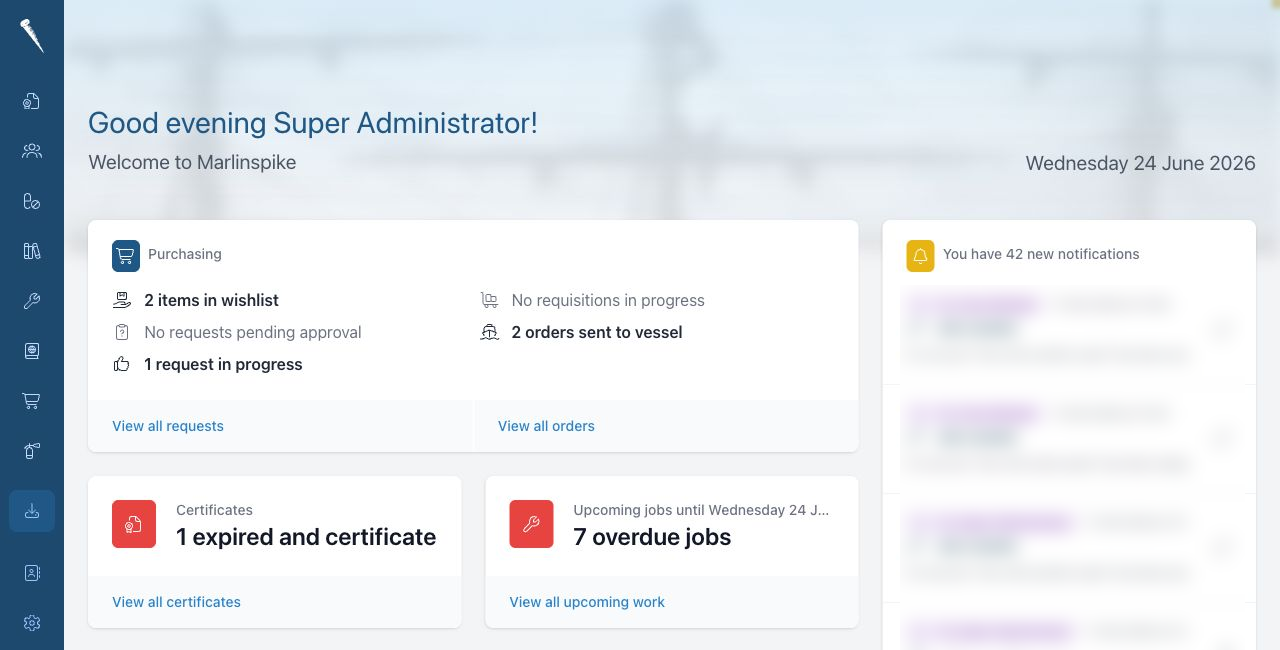
After login, Marlinspike opens your dashboard.
Sidebar
Use it to switch between modules, such as Certificates, Crewing, Maintenance, Purchasing and Safety.
You only see modules that are enabled and that your account is allowed to access.
Module
A module is a functional part of Marlinspike.
For example, the Safety module contains drills and drill reports. The Maintenance module contains assets, jobs, inventory and history.
Click a module in the sidebar to open it.
Module header
At the top of a module you will often see a module header.
The module header shows the page title and common actions for that page.
Actions can include buttons such as New, Export, PDF, Archive or search fields.
Tabs
Some modules have tabs in the module header.
Tabs switch between related views inside the same module.
For example, a module may have tabs for active items, history, settings or status pages.
Click a tab to change view.
User menu
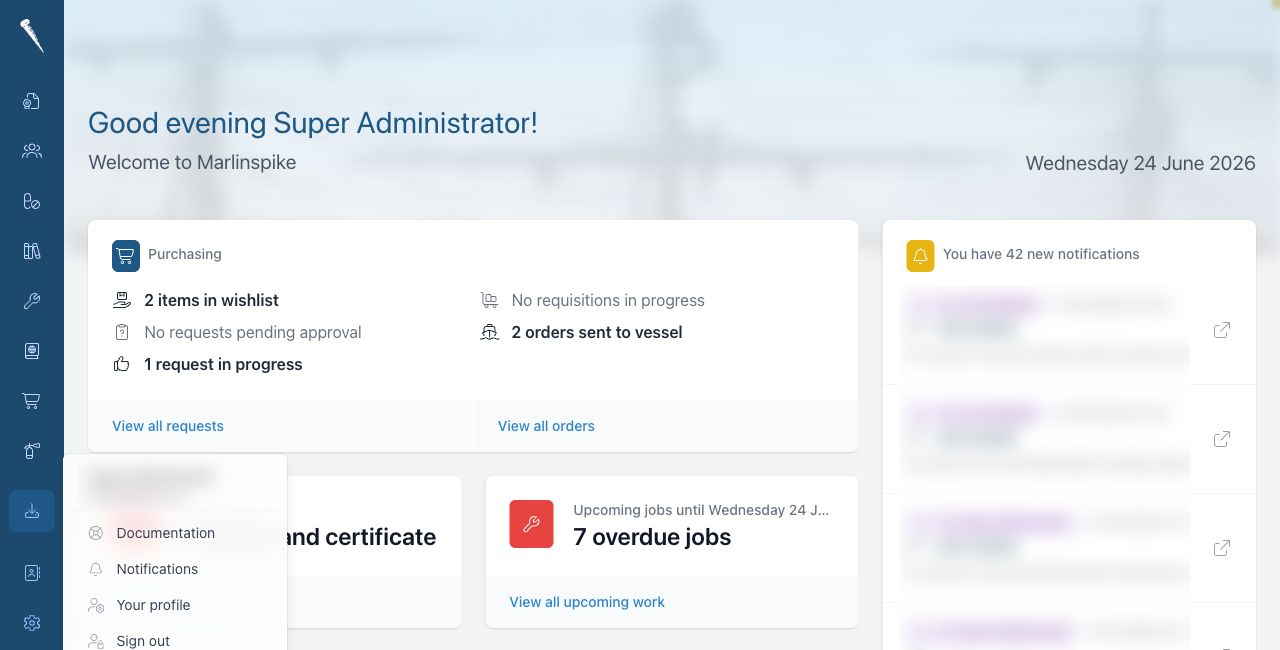
- Documentation
- Notifications
- Your profile
- Sign out
Your profile
Open Your profile when you want to manage your personal account settings.
This includes profile details and authentication options such as passkeys or an authenticator app.
Signing out
Always sign out when using a shared computer.