
Using passkeys
Creating a Passkey:
Always try to have a minimum of 2 passkeys in your profile, to ensure you have a backup.


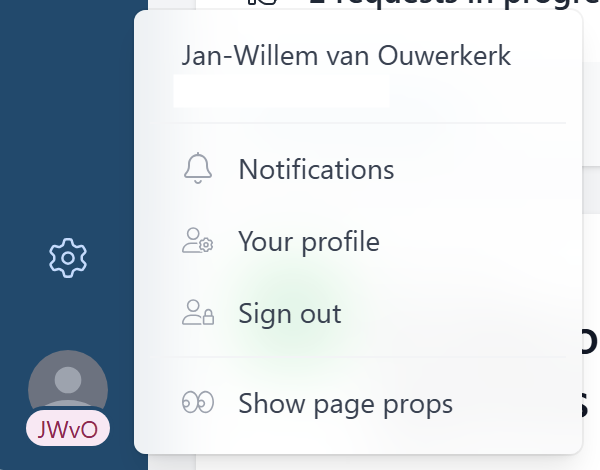
Open the tab “Security”:
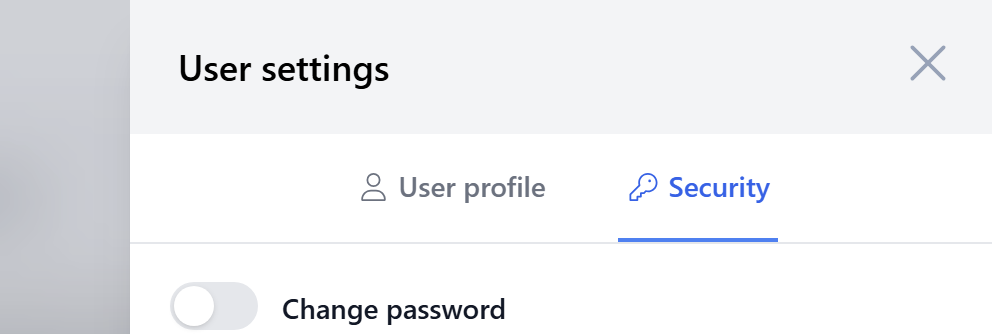
E
Enablenable “Two Factor Authentication”, select Passkey as your preferred method.
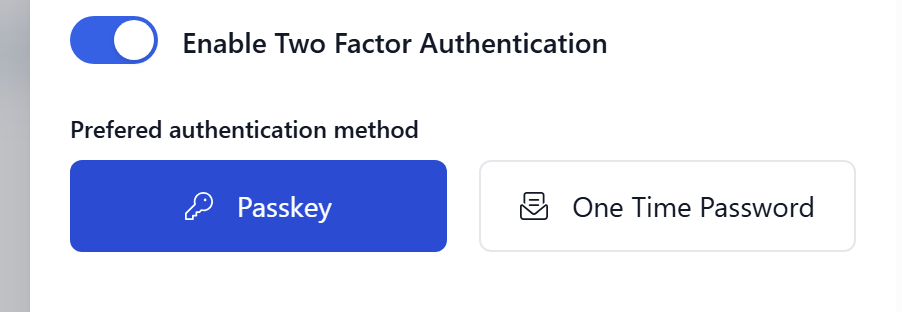
Now click on “Create Passkey”. A popup is shown which asks for a passkey name. Use a name which refers to the Passkey device you are using – Like QR code, password manager, iCloud or a hardware token.
Click on “Confirm”
A popup will show;
|
Windows |
MacOs |
|
|
|
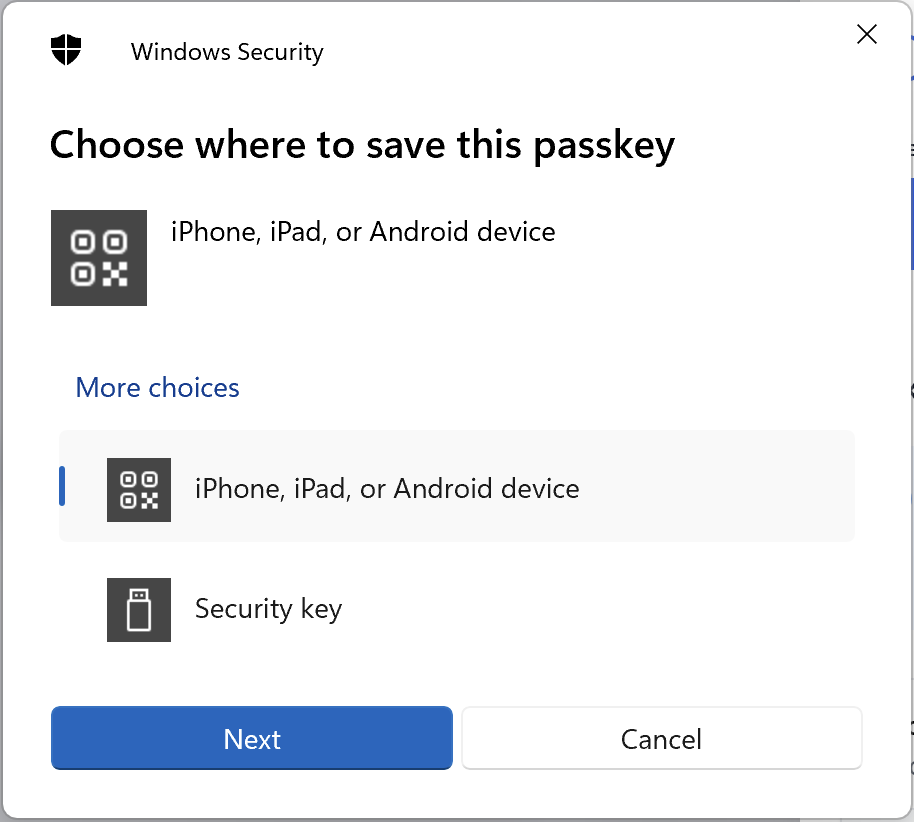
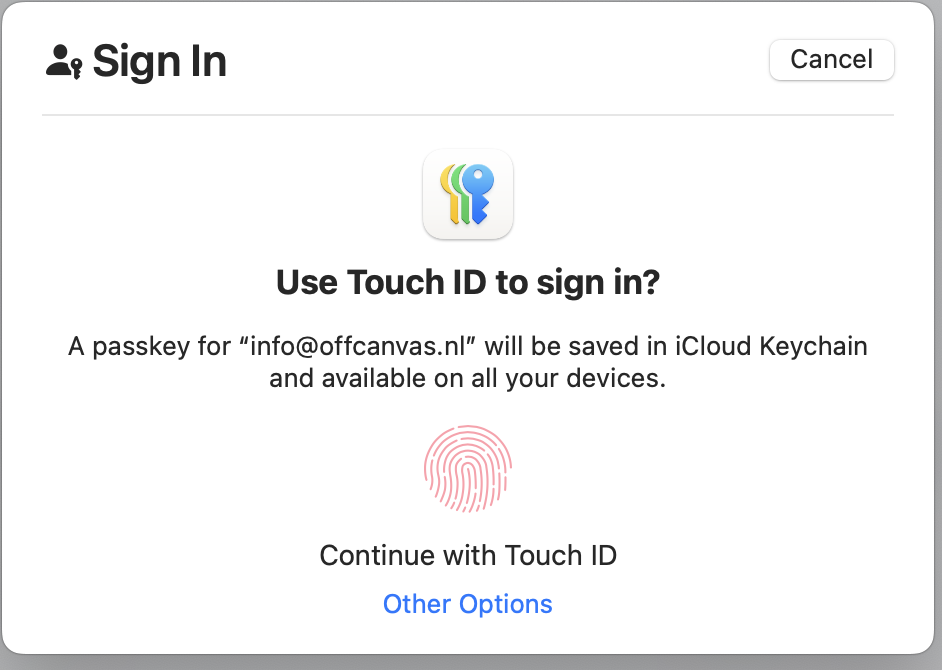
Now you can choose the desired location for your passkey, this can be on a phone, in the iCloud, on your device with a finger print or on a hardware token like a YubiKey or NFC FIDO 2 card.
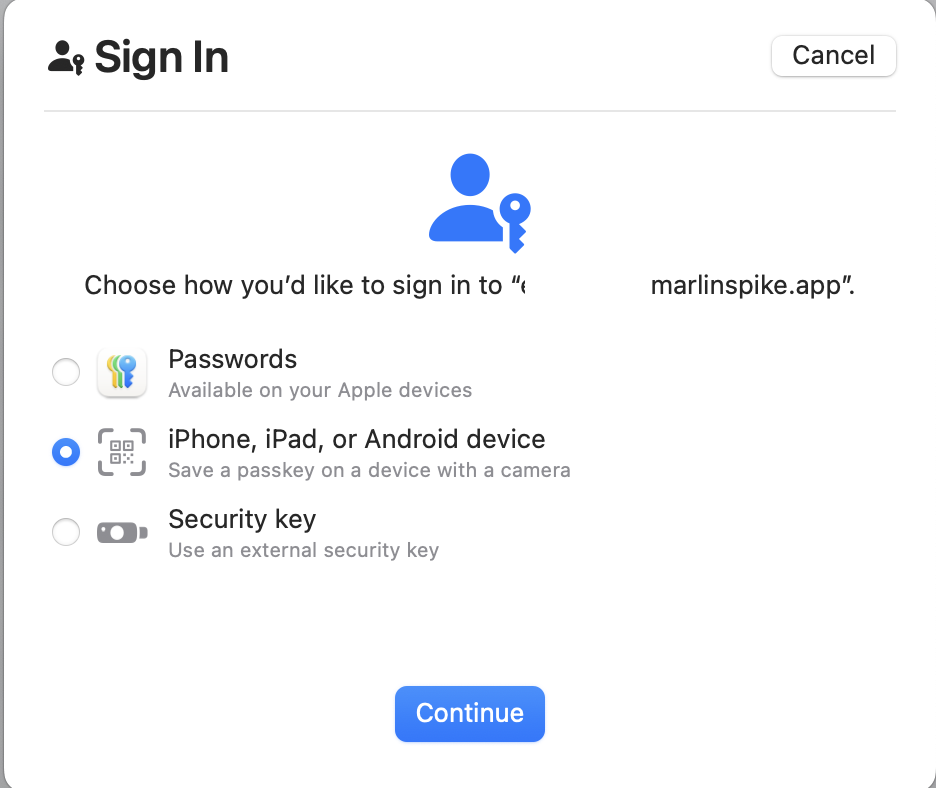
Just follow the steps that are shown. For MacOS use “other options” for other methods than iCloud.
Using a phone and QR code
Both devices need to be connected to the internet and Bluetooth switched on!!
|
Windows |
MacOs |
|
In the popup “choose where to save this passkey”, select “iPhone, iPad or Android device”.
A QR code is shown.
|
Click on “Other Options” and select “iPhone, iPad, or Android device”. Click on continue.
A QR code is shown
|
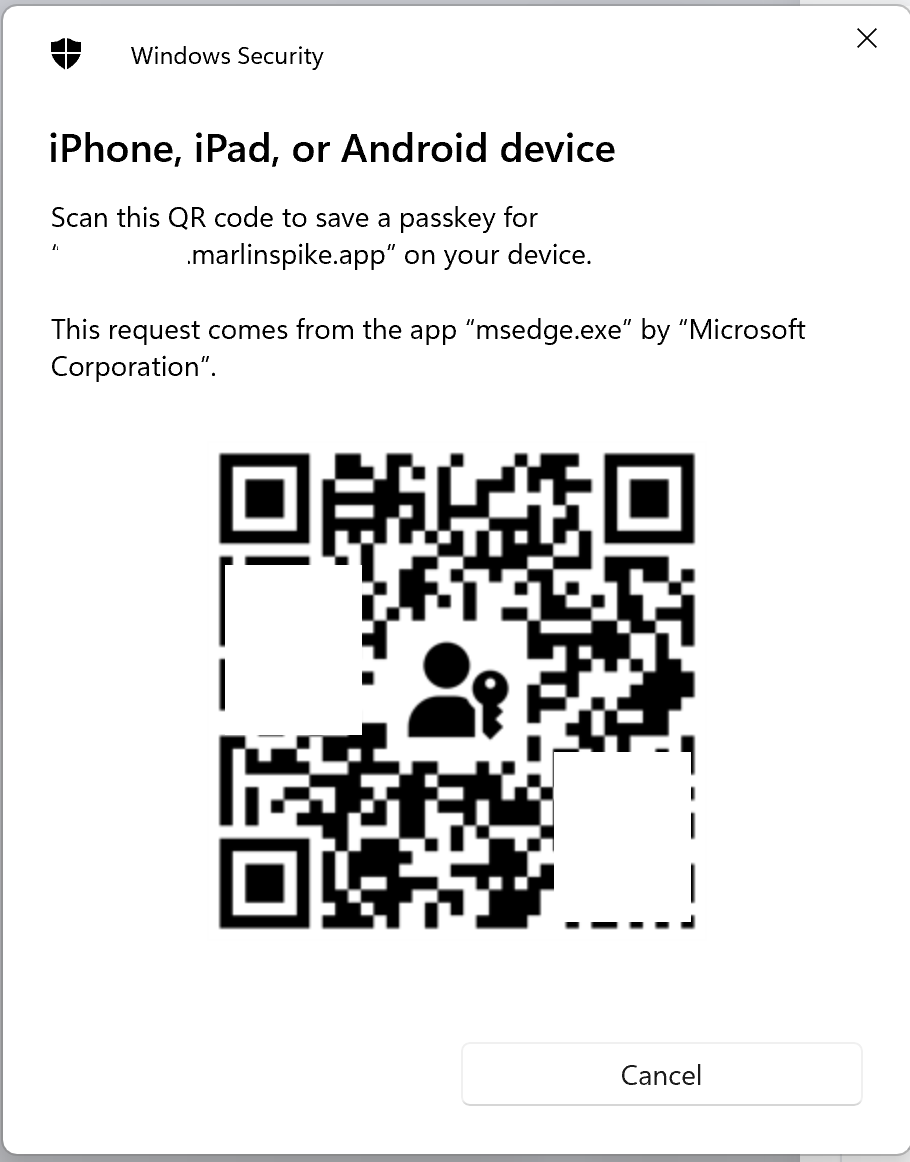
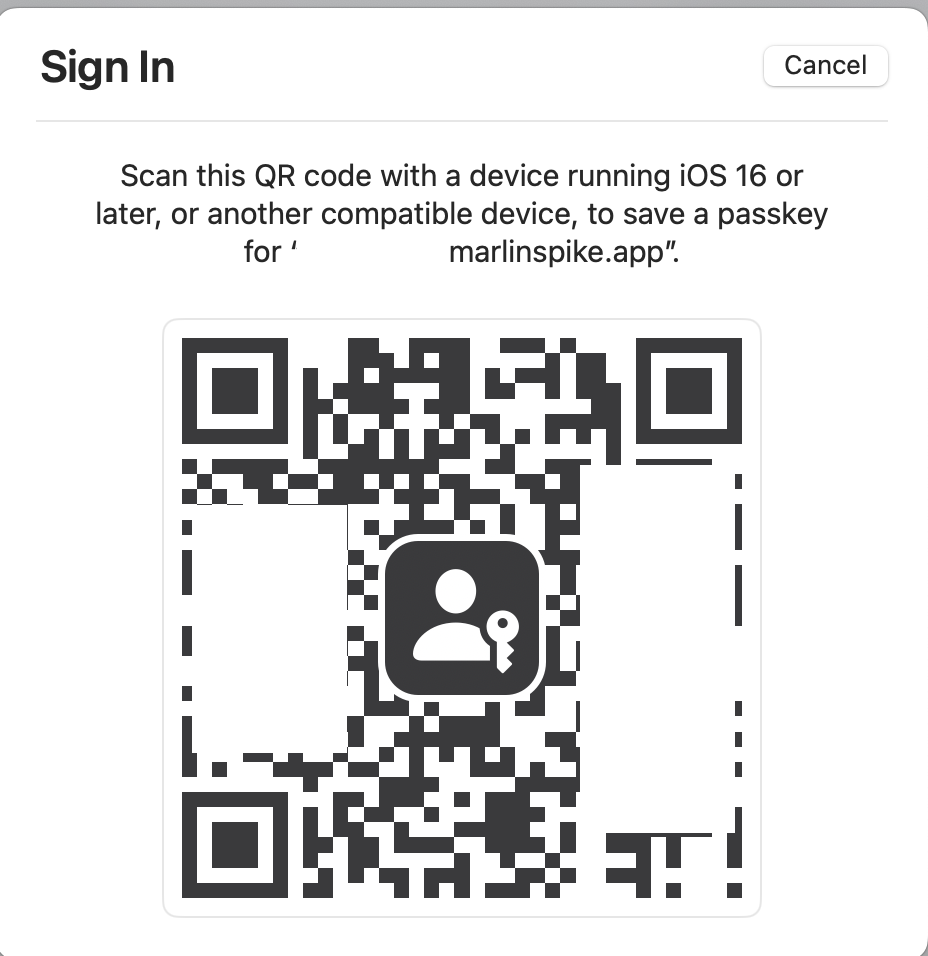
Scan the QR code with your phone and follow the instructions. When successful, you will receive the message “Passkey created”, and the passkey is added to the list of passkeys.
You can now login using a passkey.