
Work
Work
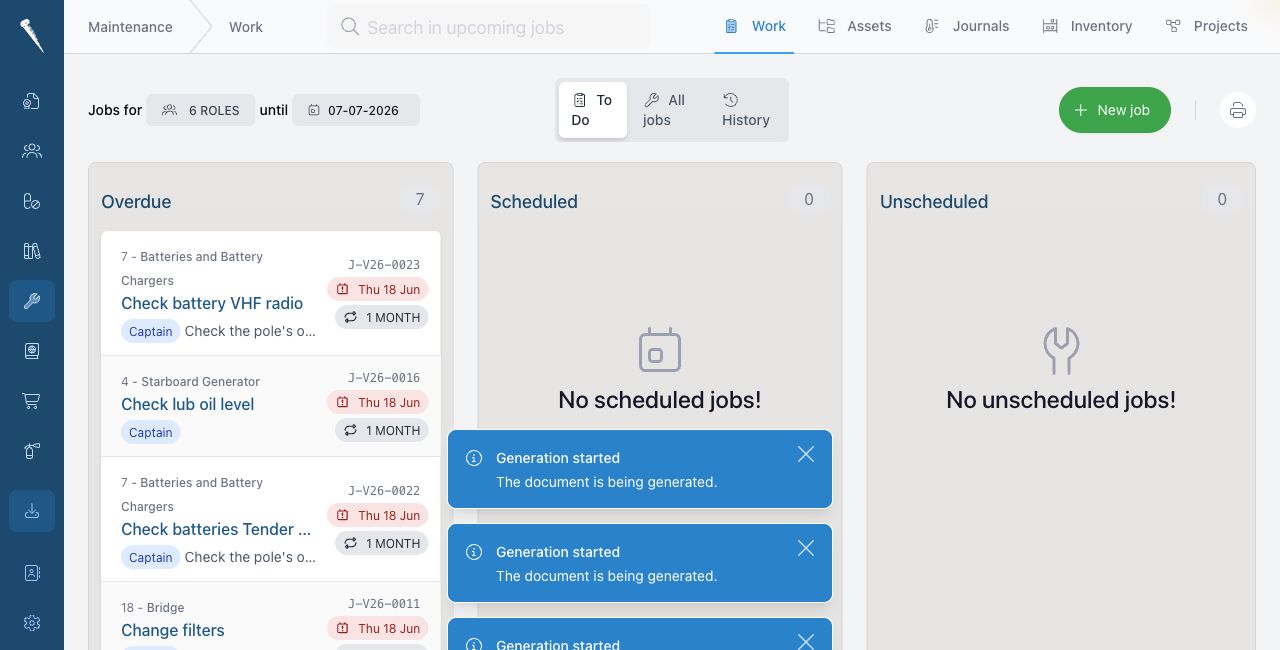
The Work tab is used for maintenance work that needs attention.
It includes upcoming jobs, overdue jobs and the all-jobs overview.

You need Access maintenance module to open Maintenance.
Extra actions depend on permissions such as creating jobs, updating jobs, finishing jobs, assigning jobs and viewing all jobs.
Opening Work
Open Maintenance and click Work.
Work to do
The Work page shows jobs that still need to be done.
Use it as the daily maintenance overview.
A job can be shown because it is due, overdue, assigned to your rank, or available because you have permission to view all jobs.
Opening a job
Click a job to open it.
A job can contain:
- title
- asset
- due date
- priority
- description
- checklist
- assigned rank
- required parts
- connected project
Creating a job
Click New or Create job.
Select the asset if the job belongs to a specific asset.
Fill in the job title, due date, priority and description.
Add checklist items when the work needs fixed checks.
Save the job.
Updating a job
Open the job and click Edit.
Change the job details and save the changes.
Finishing a job
Open the job and click Finish.
Enter the work that was done.
Complete checklist items if they are present.
Add follow-up jobs when more work is needed.
Save the maintenance record.
Finished jobs move to the maintenance history.
All jobs
Open All jobs when you need a broader view than your own work list.

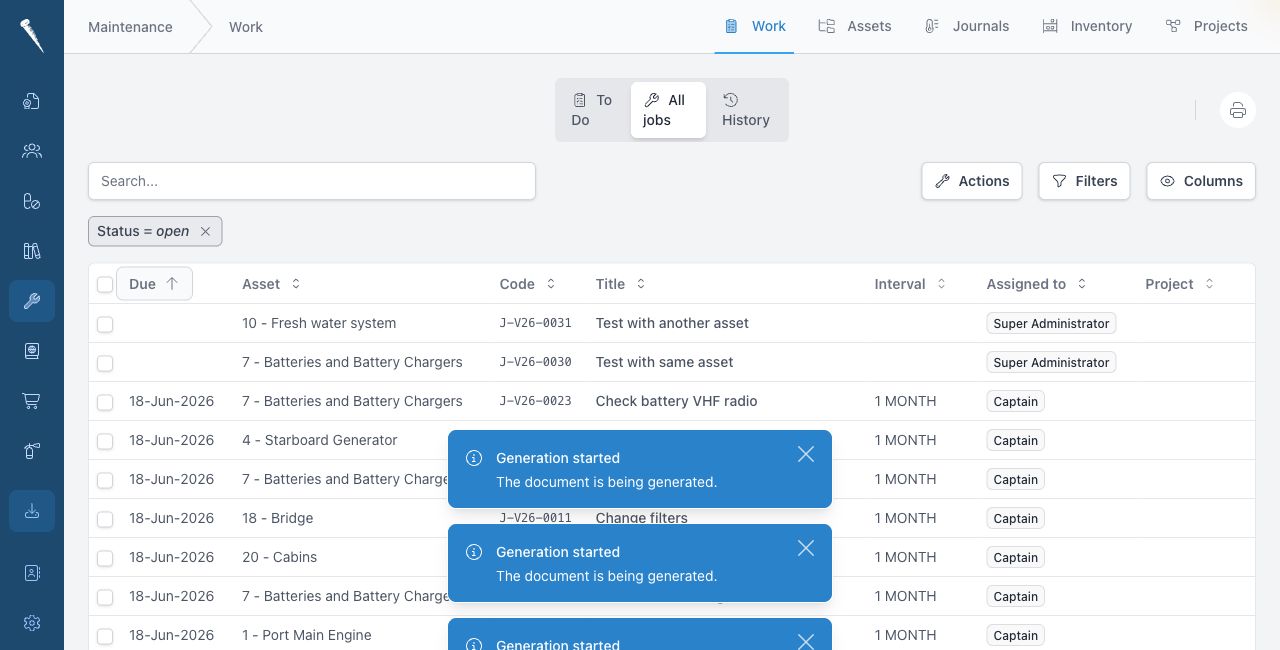
This view is useful for planning and checking jobs across ranks, assets and projects.