
General Settings
General Settings
General Settingssettings controlare used for the applicationparts appearance,of authenticationMarlinspike options,that licenseapply state,to synchronisationthe activitywhole and version information.application.

Required permission
You
needneed:change
- Access Settings Module
and(settings-access)- Manage General Settings
to(settings-general)
Openthis page.
Opening General Settings
Open Settings
.Selectand click General.
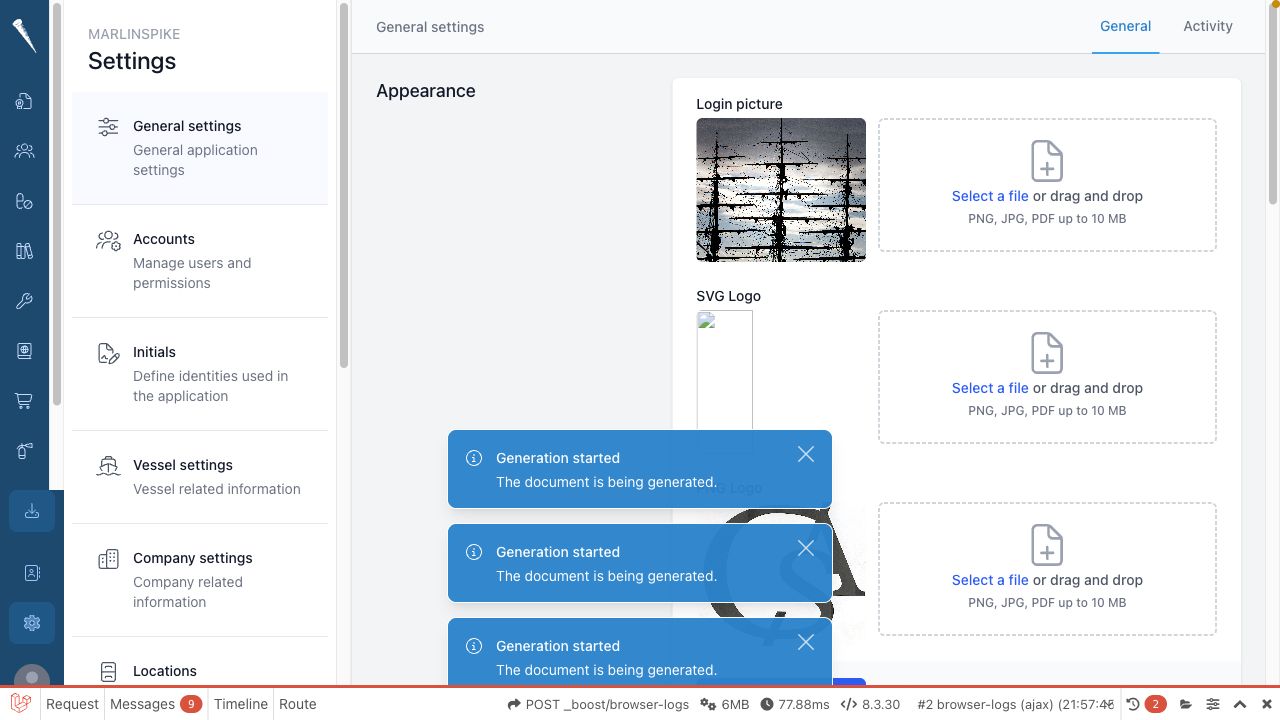
Appearance
Change
The Appearance section controls the images used by Marlinspike.
You can change:
- the login picture
or logosOpenSettings > General.IntheAppearance,SVGchooselogo- the PNG logo
Select the upload areabox fornext to the itemimage you want to replace:replace.
Login pictureSVG LogoPNG Logo
Security
The relevantSecurity pagesection ifcontrols thehow oldusers imageare is still cached in your browser.
Change authentication settings
OpenSettings > General.Goallowed toSecurity.log Underin.CloudThere
securityare separate options,for cloud access and vessel access.You can switch on or off:
- Require Two-Factor authentication
- One Time Password
UnderVessel security options, switch on or off:Require Two-Factor authenticationOne Time Password
Changesswitches are savedautomaticallywhen you changea toggle.
The
WhenIf two-factor authentication is required and one-time passwords are disabled, users must use passkeys.
CheckLicense theand licenseConsole
status
The
OpenSettings > General.Go toLicense & Console.Reviewsection shows the currentstatus,licenseconfigured token state, last check, expiry datestatus and the licensed modules.SelectClick Check license status to run a new license check.
Wait for the page to update.
Only manage the Console API token if you have been instructed to do so by the system administrator or Off Canvas support.
Sync available console data
OpenSettings > General.Go toLicense & Console.SelectClick Sync all available data.Waittountilretrieve thesyncavailablecompletes.ReviewLastconsole datachecksets.statusOnly
and any warning shown onchange thepage.Console
Viewtoken synchronisationwhen instructed by Off Canvas or your system administrator.
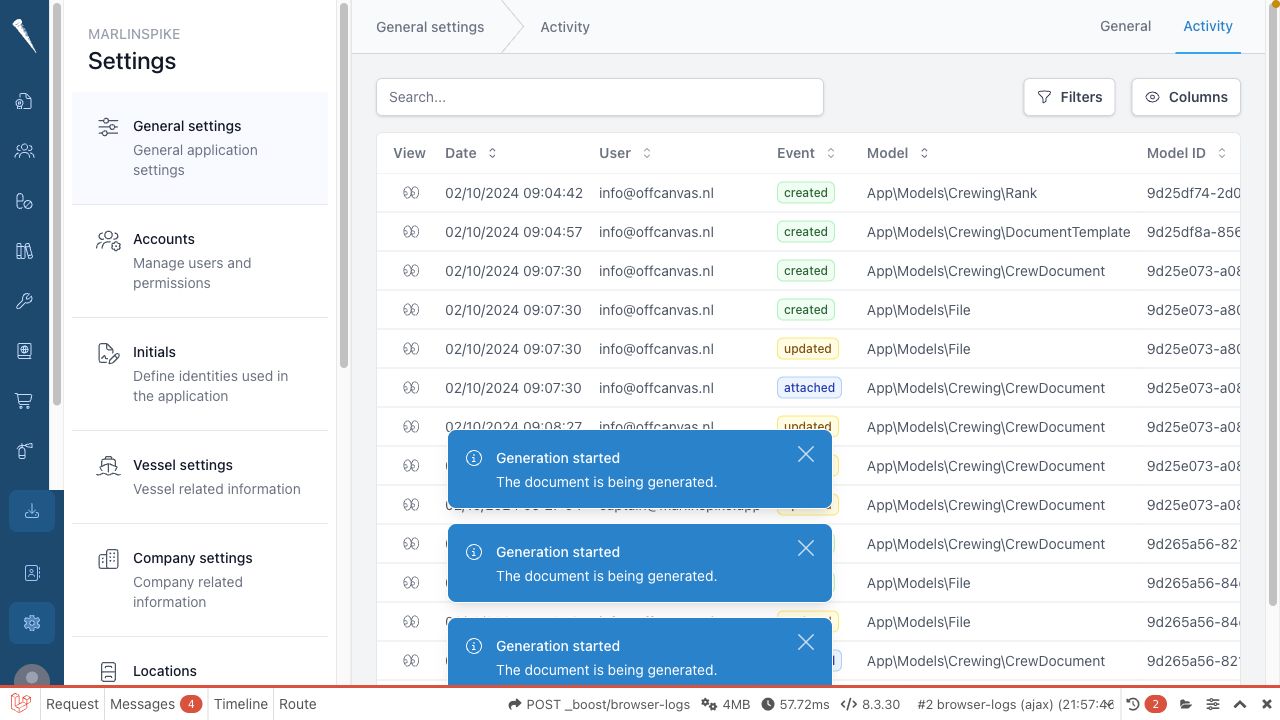
Activity
The Activity page shows the latest application activity
- from
OpentheSettingspast>month.General.Go toSynchronisation.SelectClick Show activity
.Usetotheopenactivityit.
This page is useful when you want to
reviewseerecentwhat recently happened in Marlinspike. It is not a synchronisationactivity.status
About
ReviewAbout versionsection and support details
OpenSettings > General.Go toAbout.Checkshows the installed Marlinspike version and issue date.SelectClick E-mail support when you need to
start acontact supporte-mail that includeswith the vessel and versiondetails.information