
Ranks
Ranks
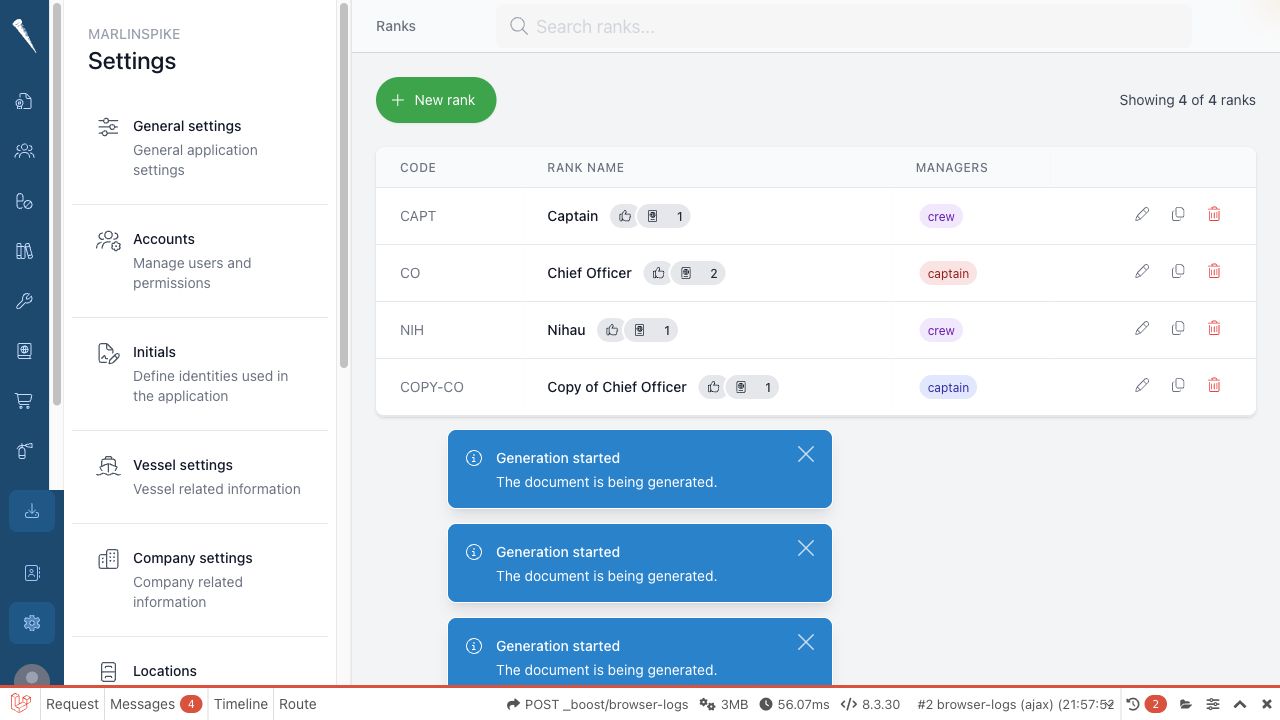
Ranks define the crew ranks used in crewing, appraisals, safety, permissions and other workflows.

Required permissions
You need:
- Access Settings Module (
settings-access) - Manage Ranks (
settings-ranks)
Open Ranks
- Open Settings.
- Select Ranks.
Search for a rank
- Open Settings > Ranks.
- Use Search ranks.
- Type part of the rank title or code.
- Select a rank from the filtered list when you find it.
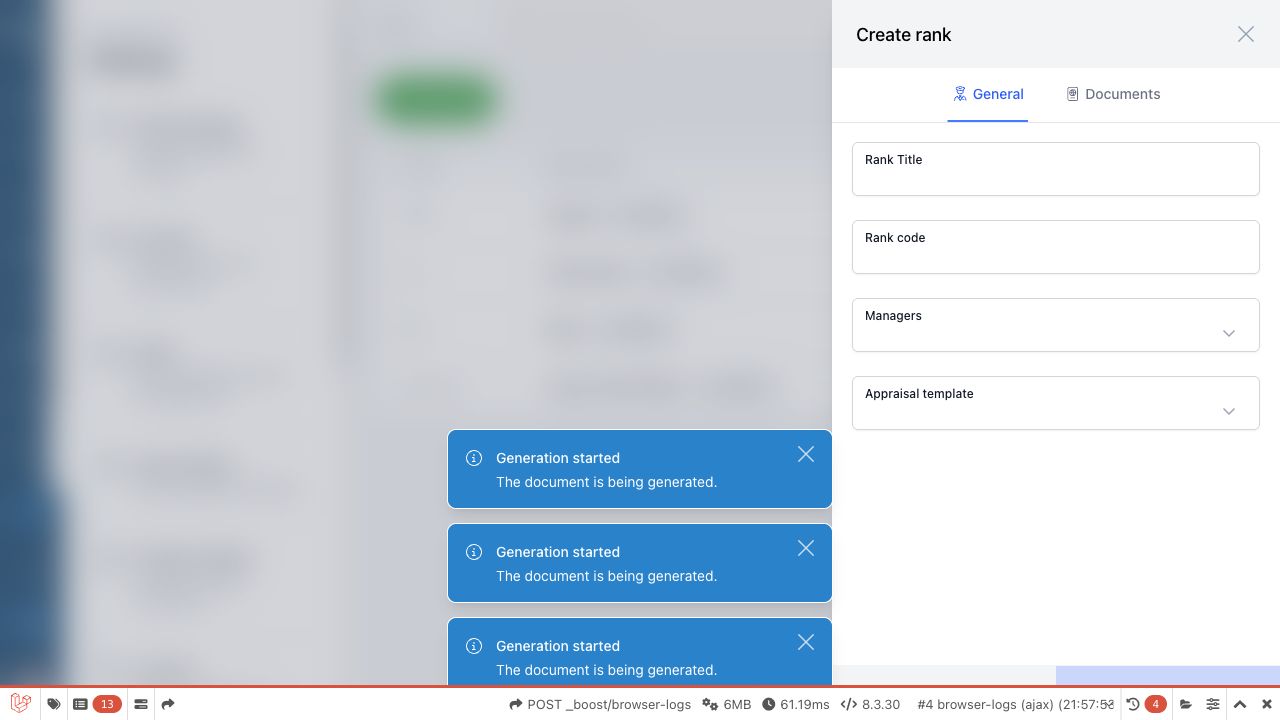
Create a rank
- Open Settings > Ranks.
- Select New rank.
- Fill in the rank details.
- If the form includes hierarchy or parent fields, place the rank in the correct position.
- Save the rank.

Edit a rank
- Open Settings > Ranks.
- Search for the rank if needed.
- Open the rank.
- Update the title, code or other rank details.
- Save the rank.
Duplicate a rank
- Open Settings > Ranks.
- Open the rank you want to copy.
- Select Duplicate if available.
- Adjust the copied rank details.
- Save the new rank.
Delete a rank
- Open Settings > Ranks.
- Open or locate the rank.
- Select the delete action.
- Confirm the deletion.
Be careful when deleting ranks that are already used by crew, documents, appraisals or permissions.