
Roles and Permissions
Accounts: Roles and Permissions
UseRoles are permission sets. Assign roles to users to decide what they can do in Marlinspike.

You need
AccountsAccess>Settings Module and Manage Roles to managepermission sets. A role groups permissions so they can be assigned to users.roles.
RequiredOpening permissions
Roles
You need:
Access Settings Module(settings-access)Manage Roles(settings-roles)
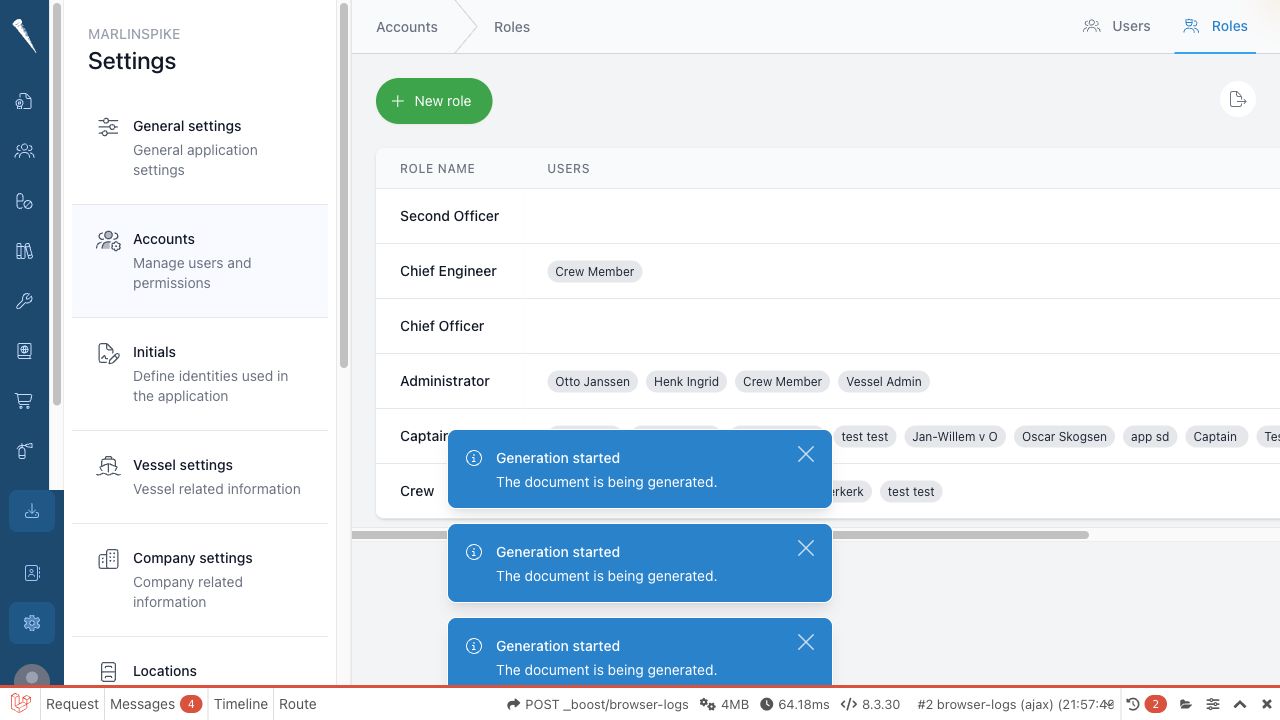
Open the roles page
- Open Settings
., Selectclick Accounts., Selectand open the Roles tab.
CreateCreating a role
OpenSettings > Accounts > Roles.SelectClick New role.
EnterFill in the Role name and Role title.
The role name
oristitle.the - internal name. The role title is the readable name shown to users.
Select the permissions that should belong to the role.
SaveMarlinspike
the role.Assignsaves the roletowhenusersyou change the form.Editing role details
Open a role from the
userRolesaccountlist.page.
You
Editedit:
a role
OpenRoleSettings > Accounts > Roles.nameSelectRolethetitle- Permissions
Addwithorthisremoverolepermissions.SaveUsers section shows which users currently have the role.
The page saves automatically when you wantmake tochanges.
Users
The
PermissionUse this list before changing permissions, because changes affect every user assignedwith to thatthe role.
DeletePermissions
Permissions are grouped by module or subject.
Open a permission group and tick the permissions this role should have.
Some permissions require another permission. When you select such a permission, Marlinspike can also add the required permission automatically.
Common permission types are:
- access a module
- view records
- create records
- update records
- delete records
- approve or revert statuses
- manage settings
Ownerships
The Ownerships section shows object-specific permissions connected to the role.
This is used when access is limited to a specific object, such as a specific drill, journal, rank or group.
Deleting a role
OpenSettings > Accounts > Roles.Find the role.SelectUse the delete
action.action Confirmfrom thedeletion.Roles
Before deleting a role, check whetherthe Users section to make sure no active users still depend on it for access.it.
Export theExporting permissions
overview
OpenSettings > Accounts > Roles.SelectUse the permissions export
actionwhenifyouavailable.need Downloadathespreadsheetspreadsheet.overview Useofitalltorolesreviewandwhichpermissions.permissions are assigned to each role.