
Users
Accounts: Users
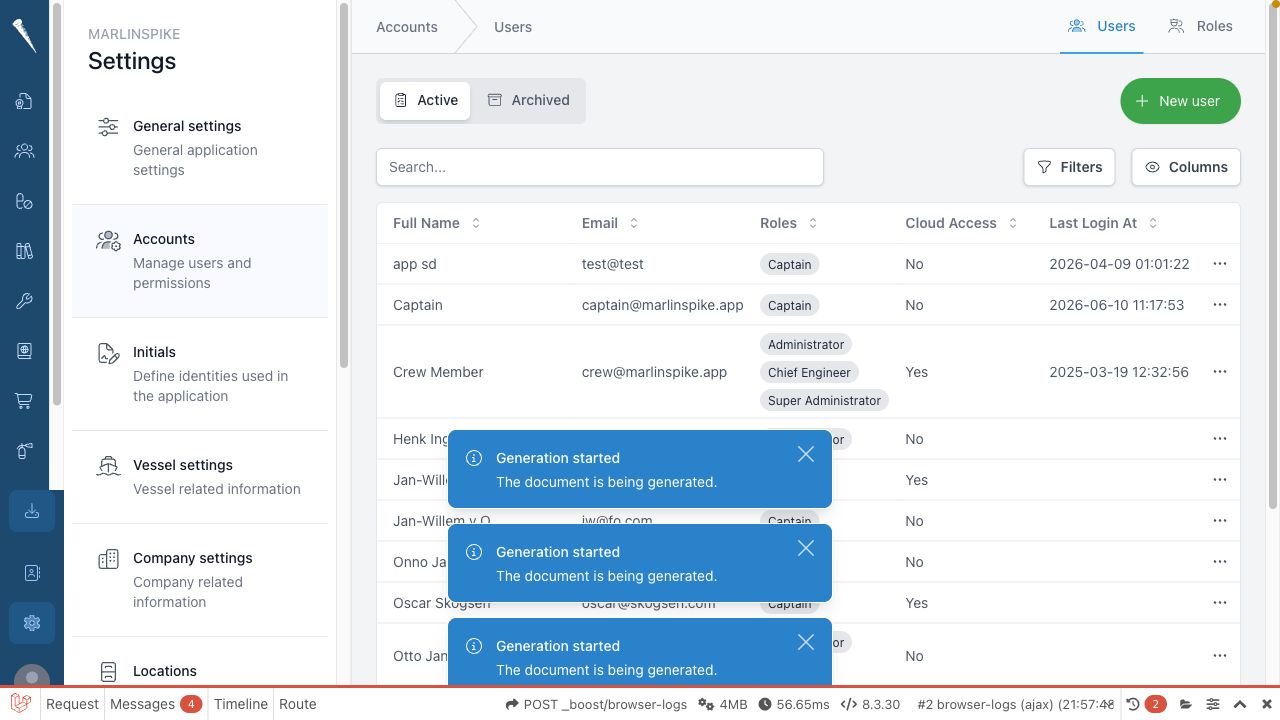
Use Accounts > Users to create users, edit account details, assign roles and archive or restore accounts.
Required permissions
You need:
- Access Settings Module (
settings-access) - Manage Users (
settings-users)
To edit roles from the user list, you also need Manage Roles (settings-roles).
Open the users page
- Open Settings.
- Select Accounts.
- Select the Users tab.
Create a user
- Open Settings > Accounts > Users.
- Select New user.
- Fill in the user details.
- Choose the account and authentication options shown in the form.
- Assign one or more roles if the form offers role selection.
- Select Save or Create.
- Confirm that the user appears in the users list.
Edit a user
- Open Settings > Accounts > Users.
- Find the user in the list.
- Select the edit action for that user.
- Update the account details, personal details or role assignments.
- Select Save.
Change a user's roles
- Open Settings > Accounts > Users.
- Open the user you want to change.
- Add or remove roles in the roles section.
- Save the user.
Roles control what the user can see and do. Changes can affect access immediately after the next page load.
Archive a user
- Open Settings > Accounts > Users.
- Find the user in the active users list.
- Select the delete or archive action.
- Confirm the action.
Archived users are removed from the active list but can be reviewed from the archive tab.
Restore an archived user
- Open Settings > Accounts > Users.
- Select Archive.
- Find the archived user.
- Select Restore.
- Confirm that the user is back in the active users list.