
Users
Users
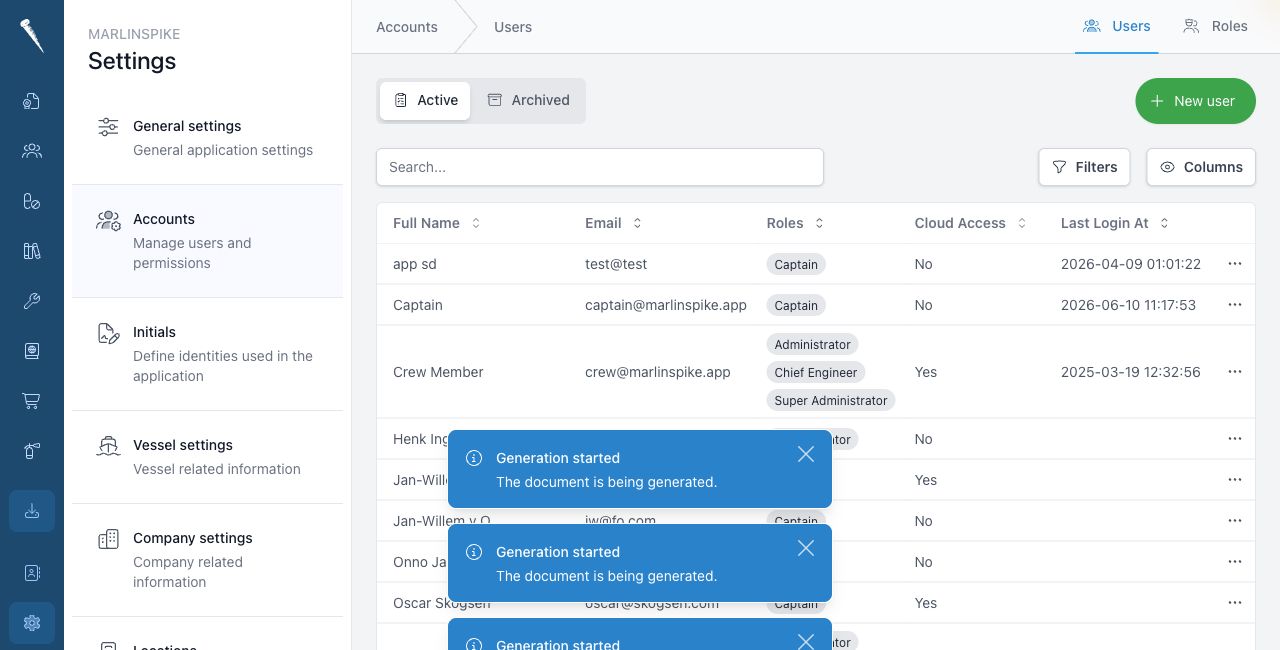
Use Users to create Marlinspike accounts and decide what each person can access.

You need Access Settings Module and Manage Users to manage users.
You also need Manage Roles if you want to change roles from the user screens.
Opening Users
Open Settings, click Accounts, and open the Users tab.
Creating a user
Click New user.
Fill in the user's name and e-mail address. The e-mail address is also used as the username.
You can also fill in a Reply-to address. This is used when mail sent by the user should receive replies at a different address.
Enter a password for the user.
Choose the roles for the user. Roles decide which modules and actions the user can access.
Switch on Cloud access enabled if this user may log in through cloud access.
Switch on E-mail details to the new user if Marlinspike should send the login details by e-mail.
Click Create user.
Standard initials
A user can be linked to standard initials.
Switch on Enable standard initials when the user should have initials available for forms and records.
You can either:
- create initials based on the user's name
- select an existing initial
Editing a user
Open the user from the Users list.
You can edit:
- first name
- prefix
- last name
- reply-to address
- password
- roles
- standard initials
- cloud access
Click Save changes when you are done.
Roles
Roles are the most important part of a user account.
A user can have one or more roles. The permissions inside those roles decide what the user can view, create, update, approve or delete.
If a user cannot see a module or button, check the roles first.
Archiving a user
Use the delete action on a user to archive the account.
Archived users no longer appear in the active user list.
Restoring a user
Open the Archive tab.
Find the archived user and click Restore.