
Vessel Locations
Vessel Locations
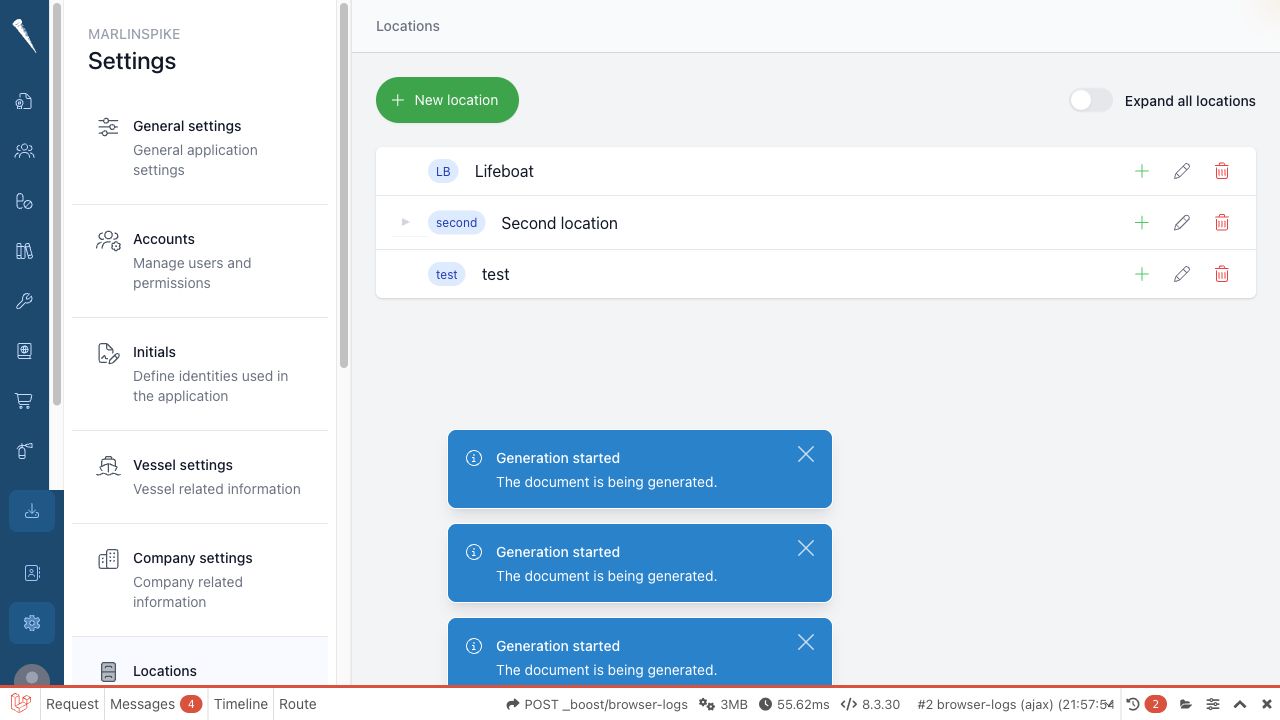
Vessel Locations define the onboard location treetree.
Locations are used by inventory, hospital equipment, maintenance parts and other workflows that need a physical location.place on board.

Required permissions
You
needneed:manage
- Access Settings Module
and(settings-access)- Manage Locations
to(settings-locations)
Openvessel locations.
Opening Vessel Locations
Open Settings
.Selectand click Locations.
Expand or collapseExpanding the locationtree
tree
OpenSettings > Locations.Use Expand all locations to
showopen orhideclosenestedthelocations.full Openlocationindividualtree.branchesYou
whencan also open only the branch youonlyneed.need to inspect one part of the vessel.
CreateCreating a top-level location
OpenSettings > Locations.SelectClick New location.
Enter the location
name.name Enter the locationand code.Leave the parent empty
or set it to the root option ifwhen the location should be at the top level.Save the location.
CreateCreating a sub-location
Open
Settings > Locations.Findthe parent location in the tree.Use the add action on that
parent location,parent, orselectclick New location andchooseselect the parent in the form.Enter the
sub-locationname andcode.code Saveand save the location.
Location codes
TheMarlinspike builds the full location code is built from the location and its parent structure.
Use short,short and consistent codescodes. soThis locations remain easy to read inkeeps inventory screens and exports.exports readable.
EditEditing a location
OpenSettings > Locations.Find the location in the
tree.tree Selectand click the edit action.Change the name, code or parent
location.location Saveandthesavelocation.it.
DeleteDeleting a location
OpenSettings > Locations.Find the location in the
tree.tree Selectand click the delete action.Confirm the deletion.
Before deleting a location, check whether it is used by inventory, hospital equipment, maintenance parts or other records.