
Drill Analysis and Settings
Drill Analysis and Safety Settings
Drill Analysis
The analysis page helps review drill coverage and recurring findings.
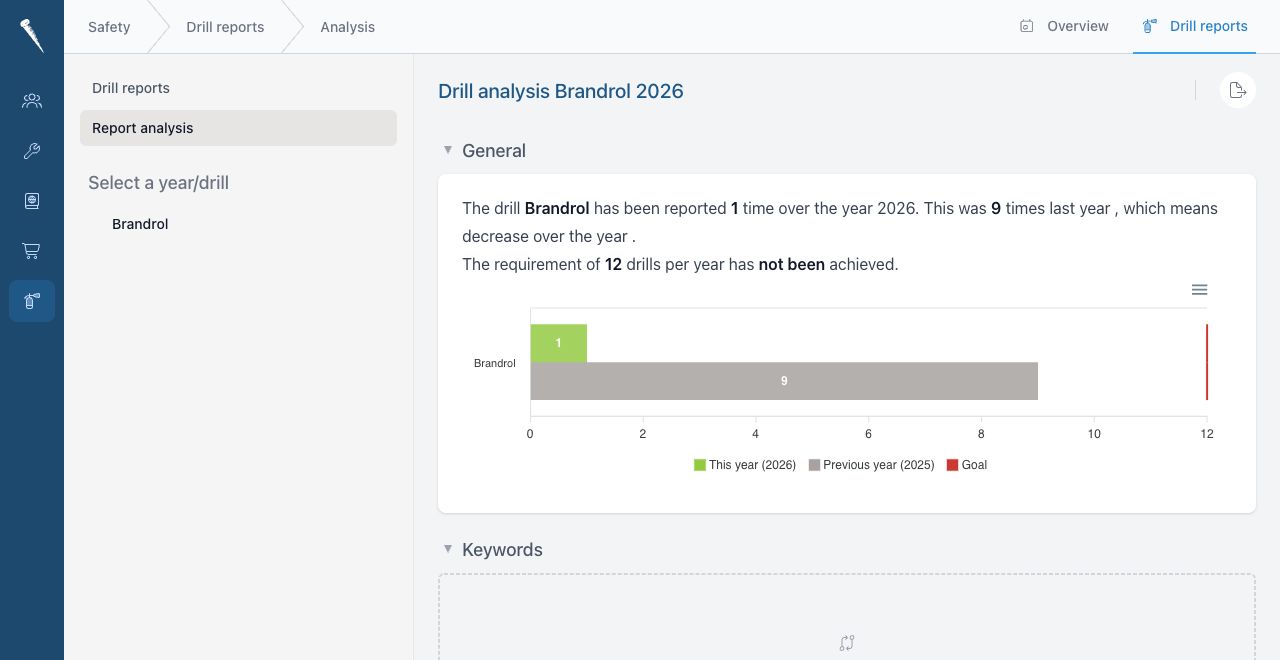
Use analysisDrill Analysis to review:review recurring findings and use Safety module settings to set up drills, evaluation categories and ignored keywords.
Required permissions
For analysis and reports, you may need:
HowAccessoftenSafetydrillsModulehave been reported.(safety-access)Whether required drill frequency has been met.Evaluation comments.Recommendations.Keywords and repeated themes.
Recommendations
Recommendations fromView drill reports can(safety-drillreport-view)
be reviewed to identify improvement actions.
If irrelevant
safety-keyword-ignore), when maintaining ignored keywords from analysisFor Safety module settings, you need:
- Access Settings Module (
settings-access) - Access safety settings (
settings-safety)
Open drill analysis
- Open Safety.
- Select Drill Analysis.
- Choose a drill or year if filters are available.
- Review the drill coverage, evaluations, recommendations and keyword charts.

Review recommendations
- Open Safety > Drill
SettingsAnalysis. - Review the recommendations list.
- Open the related report when you need the full context.
- Use the recommendations to plan follow-up actions outside the analysis page.
Ignore irrelevant keywords
- Open Safety
settings>defineDrillwhichAnalysis. - Find
areanavailableirrelevantandkeywordhowinoftenthetheyanalysis. - Use the ignore action if available.
- Confirm the keyword should be
performed.ignored.
Ignored keywords are excluded from future analysis views.
Open Safety module settings
- Open Settings.
- Go to the module settings area.
- Select Safety.
Drill
Set canup include:drills
- Open Settings > Safety.
- In Drills, review the existing drill definitions.
- Create a new drill or open an existing drill.
- Fill in or update the drill setup, such as:
- Drill title
- Required interval
- Scheduling method
- Initial due date
- Description
- Default reporting type
- Access restrictions
- Save the drill.
OnlyThe authoriseddrill setup controls which drills are available in Safety and how Marlinspike determines whether they are due or overdue.
Edit a drill setup
- Open Settings > Safety.
- In Drills, open the drill you want to change.
- Update the schedule, description, reporting type or access settings.
- Save the drill.
- Check the Safety overview to confirm the schedule appears as expected.
Delete a drill setup
- Open Settings > Safety.
- In Drills, find the drill.
- Select the delete action.
- Confirm the deletion.
Be careful when deleting drills that already have reports. If a drill has operational history, consider whether it should remain available for reporting and analysis.
Add an evaluation category
- Open Settings > Safety.
- Go to Drill Evaluations.
- Select Add category.
- Enter the category name.
- Select Save.
Evaluation categories appear when users shouldadd manageevaluation points to a drill definitions.report.
Remove an evaluation category
- Open Settings > Safety.
- Go to Drill Evaluations.
- Select the delete action next to the category.
- Select Save.
Existing reports keep their recorded evaluation content, but changing categories may affect how future evaluations are grouped.
Reset evaluation categories to default
- Open Settings > Safety.
- Go to Drill Evaluations.
- Select Reset to default.
- Select Save.
Maintain ignored keywords
- Open Settings > Safety.
- Go to Keywords.
- Enter a keyword in Add new keyword to the ignore list.
- Select Add keyword.
- Select Save.
To remove a keyword, select the delete action on the keyword badge and then select Save. Use Clear list only when you want to remove the full custom ignore list.