
Drill Analysis and Settings
Drill Analysis and Safety Settings
Use Drill Analysis to review recurring findings and use Safety module settings to set up drills, evaluation categories and ignored keywords.
Required permissions
For analysis and reports, you may need:
- Access Safety Module (
safety-access) - View drill reports (
safety-drillreport-view) - Add keywords to the ignore list (
safety-keyword-ignore), when maintaining ignored keywords from analysis
For Safety module settings, you need:
- Access Settings Module (
settings-access) - Access safety settings (
settings-safety)
Open drill analysis
- Open Safety.
- Select Drill Analysis.
- Choose a drill or year if filters are available.
- Review the drill coverage, evaluations, recommendations and keyword charts.

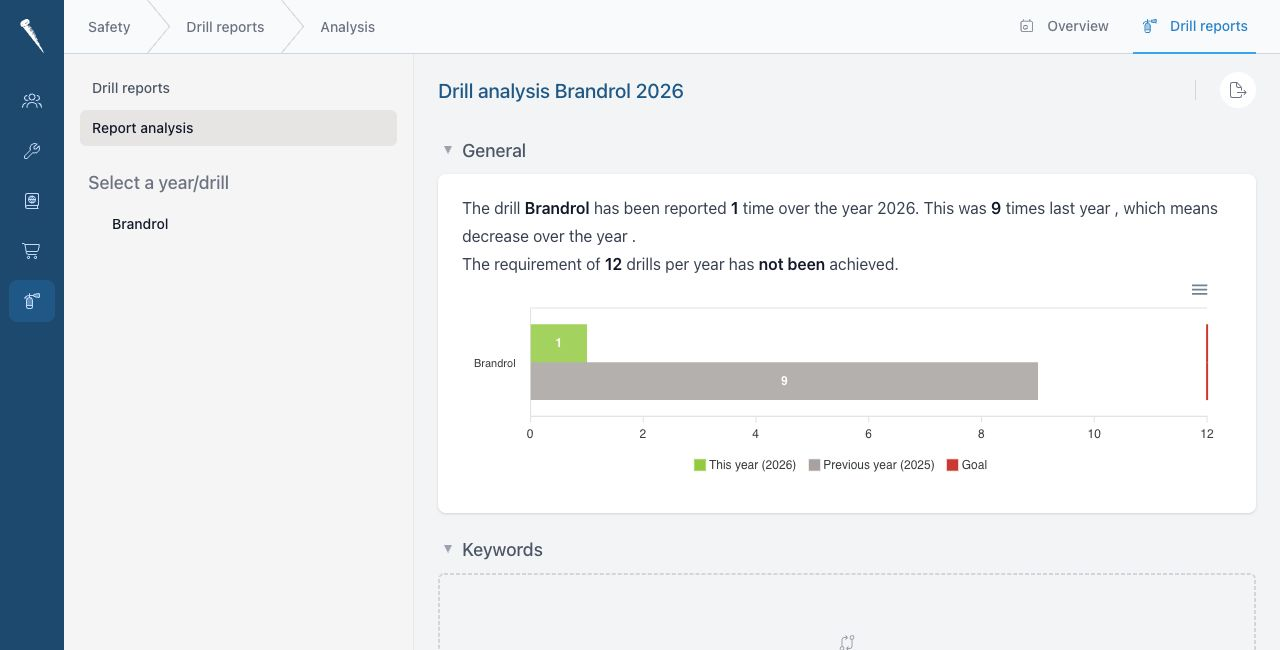
Review recommendations
- Open Safety > Drill Analysis.
- Review the recommendations list.
- Open the related report when you need the full context.
- Use the recommendations to plan follow-up actions outside the analysis page.
Ignore irrelevant keywords
- Open Safety > Drill Analysis.
- Find an irrelevant keyword in the analysis.
- Use the ignore action if available.
- Confirm the keyword should be ignored.
Ignored keywords are excluded from future analysis views.
Open Safety module settings
- Open Settings.
- Go to the module settings area.
- Select Safety.

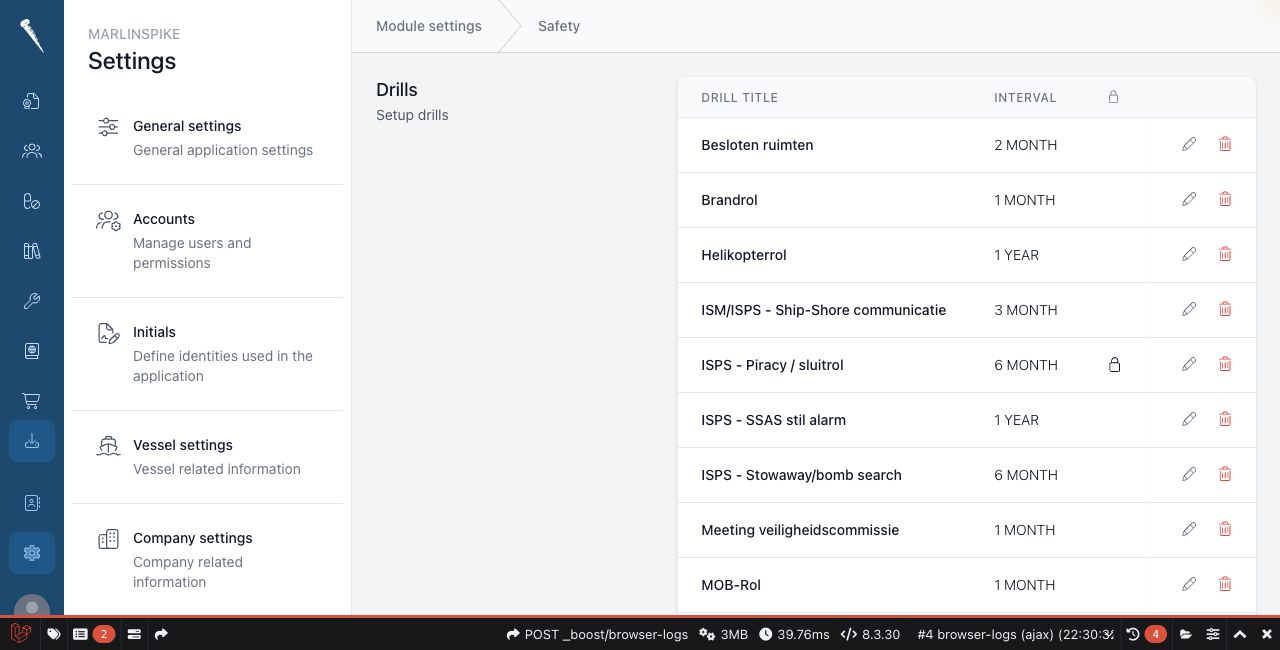
Set up drills
- Open Settings > Safety.
- In Drills, review the existing drill definitions.
- Create a new drill or open an existing drill.
- Fill in or update the drill setup, such as:
- Drill title
- Required interval
- Scheduling method
- Initial due date
- Description
- Default reporting type
- Access restrictions
- Save the drill.
The drill setup controls which drills are available in Safety and how Marlinspike determines whether they are due or overdue.
Edit a drill setup
- Open Settings > Safety.
- In Drills, open the drill you want to change.
- Update the schedule, description, reporting type or access settings.
- Save the drill.
- Check the Safety overview to confirm the schedule appears as expected.
Delete a drill setup
- Open Settings > Safety.
- In Drills, find the drill.
- Select the delete action.
- Confirm the deletion.
Be careful when deleting drills that already have reports. If a drill has operational history, consider whether it should remain available for reporting and analysis.
Add an evaluation category
- Open Settings > Safety.
- Go to Drill Evaluations.
- Select Add category.
- Enter the category name.
- Select Save.
Evaluation categories appear when users add evaluation points to a drill report.
Remove an evaluation category
- Open Settings > Safety.
- Go to Drill Evaluations.
- Select the delete action next to the category.
- Select Save.
Existing reports keep their recorded evaluation content, but changing categories may affect how future evaluations are grouped.
Reset evaluation categories to default
- Open Settings > Safety.
- Go to Drill Evaluations.
- Select Reset to default.
- Select Save.
Maintain ignored keywords
- Open Settings > Safety.
- Go to Keywords.
- Enter a keyword in Add new keyword to the ignore list.
- Select Add keyword.
- Select Save.
To remove a keyword, select the delete action on the keyword badge and then select Save. Use Clear list only when you want to remove the full custom ignore list.