
Drill Reports
Drill Reports
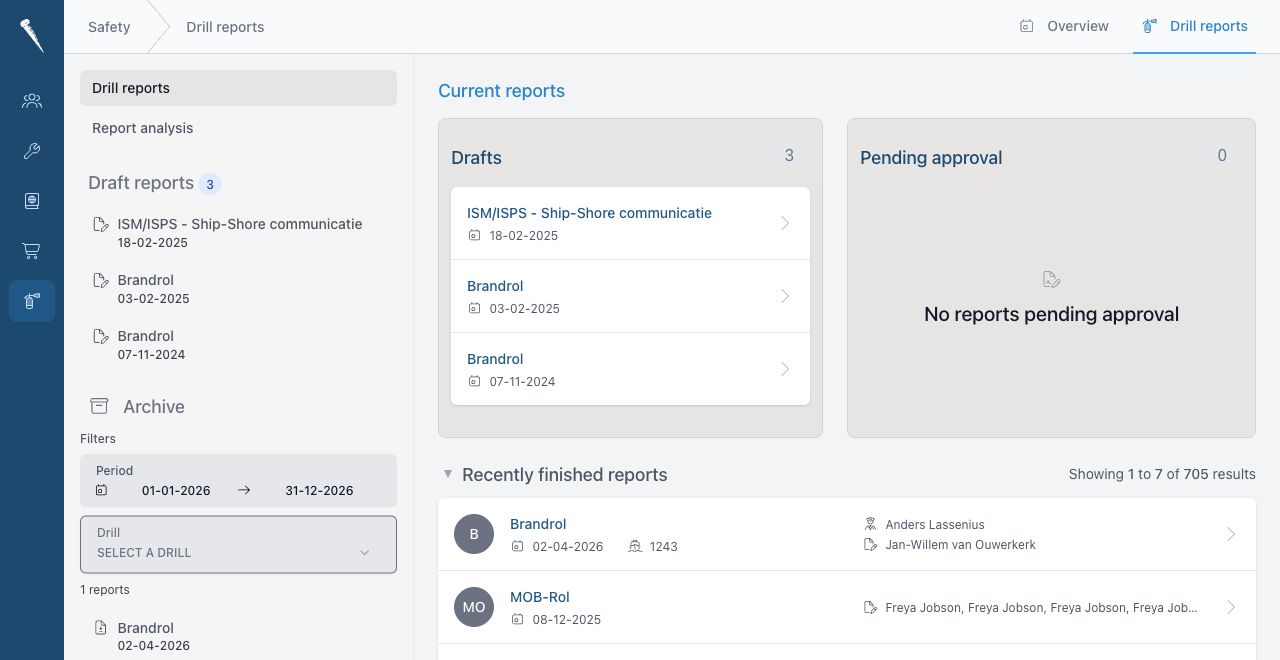
The drill reports area showsis where you create the official record for a drill, add participating crew, record findings and move the report through draft, pending and finished drill reports.statuses.

Required permissions
You need the relevant Safety permissions for the action you want to perform:
- Access Safety Module (
safety-access) - View drill reports (
safety-drillreport-view) - Create drill report (
safety-drillreport-create) - Update drill report (
safety-drillreport-update) - Delete drill report (
safety-drillreport-delete) - Approve drill reports (
safety-drillreport-approve) - Revert drill report status (
safety-drillreport-status-revert), when a finished or pending report must be moved back
Access to specific drills may also depend on drill access permissions.
Open drill reports
- Open Safety.
- Select Drill Reports.
- Use the report lists to switch between draft, pending, finished and archived reports.
Create a drill report
- Open Safety > Drill
ReportReports. - Select
athe drillandfor which you want to create anewreport. - Select
ReportsCreatecan be simplereport orfull,thedependingnewonreport action for that drill. - Choose the report type if the form offers a choice:
- Simple for a shorter report.
- Full when the drill setup requires more detail.
- Fill in the report details, such as date, voyage, position, weather, scenario and
whattimeline. - Add
toparticipating crew if the report should record attendance. - Add evaluation points if findings, recommendations or lessons learned must be recorded.
- Save the report.
After saving, the report opens in edit mode so you can continue working on it.
Edit a drill report
- Open Safety > Drill Reports.
- Open the report.
- Select Edit.
- Update the report information.
- Save the report.

CommonFinished reports may be locked depending on your permissions. If you need to change a finished report, you must have permission to edit finished reports or revert the status first.
Add or remove crew
- Open the report
informationinincludes:editmode.
status action to move the report to the next status.- Go
participants section.to orFieldDescription- Select
DateDatecrew member from the crew selector.- Select Add crewmember.
- Repeat this for each participant.
- To remove a participant, use the remove action next to that crew member.
- Save the report.
Crew added here becomes part of the drill
wasreportheld.is anVoyageVoyagewhen the report is viewed oroperationalexported.reference.Add
evaluation category.PositionPosition- Open the report in edit mode.
- Go to the Evaluation tab or
locationsection. - Select Add evaluation point.
- Choose the
drill.
of- Switch
WeatherConditionsRecommendationduringif thedrill.a textScenarioScenariorather than a general finding.- Enter the evaluation text.
- Save the report.
Evaluation points are used
forin drill analysis. Keywords are generated from theexercise.and charts.TimelineWhatappearhappened duringin thedrill.Edit
ParticipantsCrewdeletemembersanwhoevaluationparticipated.- Open
the report in edit mode. .- Go to Evaluation
- Change
recommendationsthe category, recommendation flag or content. - To remove a point, select the delete action for that evaluation point.
- Save the report.
- Open the report.
- Review all report details, crew and
lessonsevaluationlearned. - Use
Findings,Submit or finish a report
- Go
- If approval is required, move it to Pending.
- If the report is complete and you have approval permission, finish or approve it.
Report Statusstatuses
| Status | Meaning |
|---|---|
| Draft | The report is still being |
| Pending | The report is awaiting approval. |
| Finished | The report is |
View a Drill Report
OpenExport a report to reviewPDF
- Open the
fullreport. - Select the
officialPDFrecordorofexport action. - Save or print the
drill.downloaded
report.Export
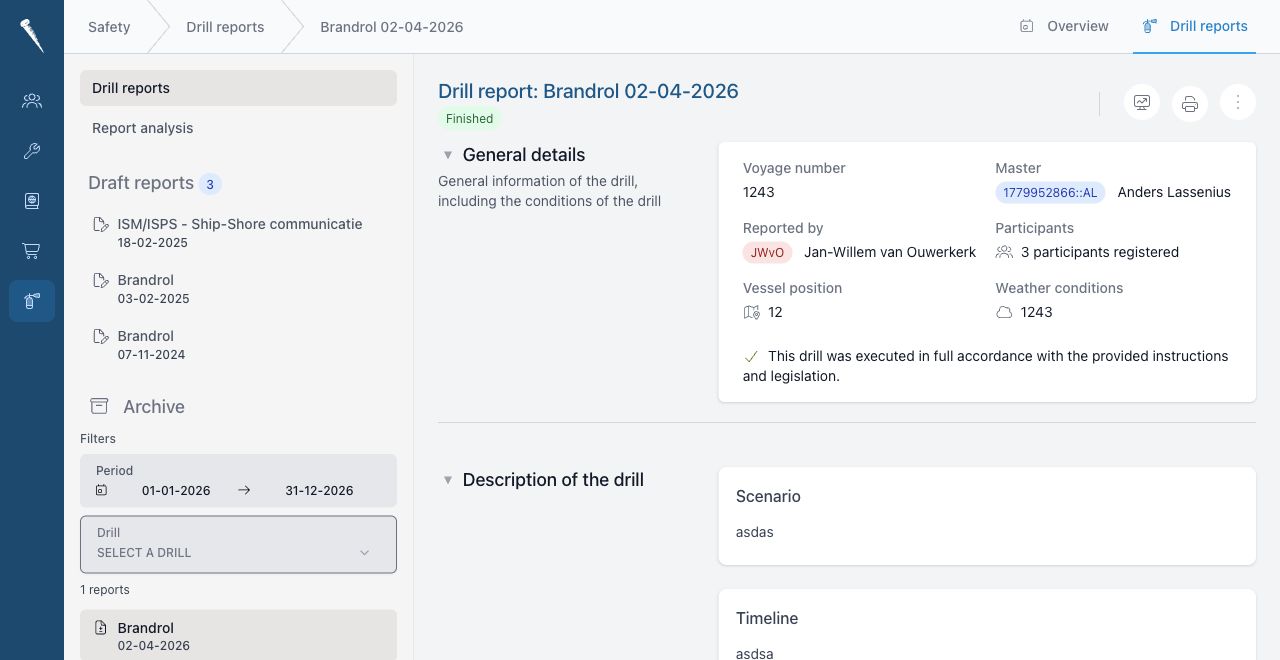
Finished reports can be used as
Drill