
Drill Reports
Drill Reports
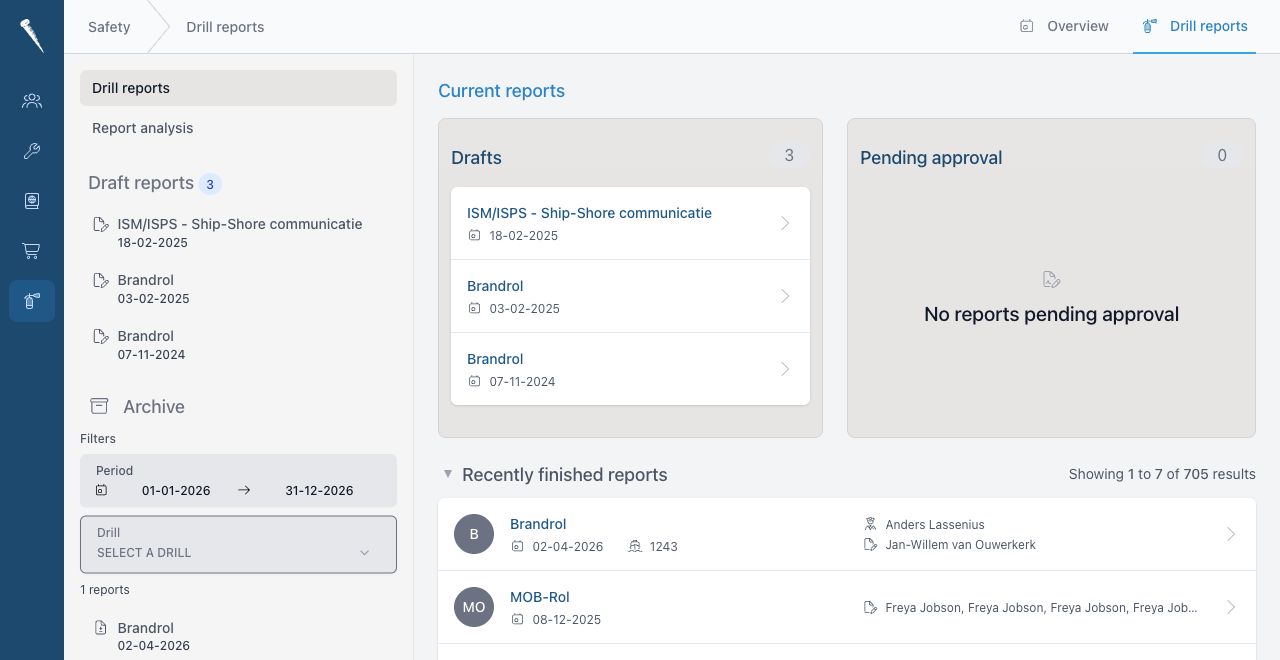
The drill reports area is where you create the official record for a drill, add participating crew, record findings and move the report through draft, pending and finished statuses.

Required permissions
You need the relevant Safety permissions for the action you want to perform:
- Access Safety Module (
safety-access) - View drill reports (
safety-drillreport-view) - Create drill report (
safety-drillreport-create) - Update drill report (
safety-drillreport-update) - Delete drill report (
safety-drillreport-delete) - Approve drill reports (
safety-drillreport-approve) - Revert drill report status (
safety-drillreport-status-revert), when a finished or pending report must be moved back
Access to specific drills may also depend on drill access permissions.
Open drill reports
- Open Safety.
- Select Drill Reports.
- Use the report lists to switch between draft, pending, finished and archived reports.
Create a drill report
- Open Safety > Drill Reports.
- Select the drill for which you want to create a report.
- Select Create report or the new report action for that drill.
- Choose the report type if the form offers a choice:
- Simple for a shorter report.
- Full when the drill setup requires more detail.
- Fill in the report details, such as date, voyage, position, weather, scenario and timeline.
- Add participating crew if the report should record attendance.
- Add evaluation points if findings, recommendations or lessons learned must be recorded.
- Save the report.
After saving, the report opens in edit mode so you can continue working on it.
Edit a drill report
- Open Safety > Drill Reports.
- Open the report.
- Select Edit.
- Update the report information.
- Save the report.

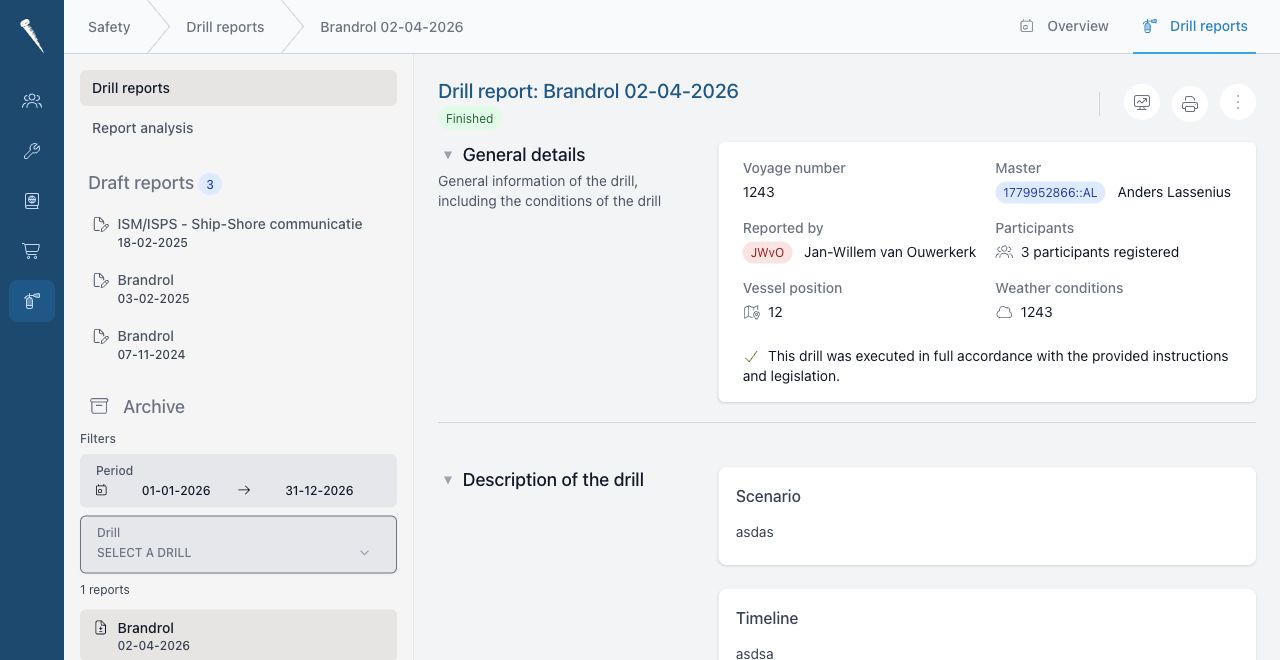
Finished reports may be locked depending on your permissions. If you need to change a finished report, you must have permission to edit finished reports or revert the status first.
Add or remove crew
- Open the report in edit mode.
- Go to the crew or participants section.
- Select the crew member from the crew selector.
- Select Add crewmember.
- Repeat this for each participant.
- To remove a participant, use the remove action next to that crew member.
- Save the report.
Crew added here becomes part of the drill report record and is shown when the report is viewed or exported.
Add an evaluation point
- Open the report in edit mode.
- Go to the Evaluation tab or section.
- Select Add evaluation point.
- Choose the evaluation category.
- Switch on Recommendation if the item is a recommendation rather than a general finding.
- Enter the evaluation text.
- Save the report.
Evaluation points are used in drill analysis. Keywords are generated from the evaluation text and can appear in the analysis charts.
Edit or delete an evaluation point
- Open the report in edit mode.
- Go to Evaluation.
- Change the category, recommendation flag or content.
- To remove a point, select the delete action for that evaluation point.
- Save the report.
Submit or finish a report
- Open the report.
- Review all report details, crew and evaluation points.
- Use the status action to move the report to the next status.
- If approval is required, move it to Pending.
- If the report is complete and you have approval permission, finish or approve it.
Report statuses
| Status | Meaning |
|---|---|
| Draft | The report is still being prepared and can be edited. |
| Pending | The report is awaiting approval. |
| Finished | The report is completed and becomes the official record. |
Export a report to PDF
- Open the report.
- Select the PDF or export action.
- Save or print the downloaded report.